Posts

Unknown interface eno2! If ifup/ifdown interfece name does not work and says Unknown interface

Unknown interface eno2! If ifup/ifdown interfece name does not work and says Unknown interface try the following command: #sudo ifconfig [interface-name] down / up example: $ sudo ifconfig eno1 up

Linux: Show Available Network Interfaces Names?

If you want to know network interface name which are by default not show with ifconfig use the following command: # ip link show

Upgrade Certbot in Ubuntu 16.04. How to upgrade Certbot?

1. Check you Certbot version    # certbot --version 2. Your Certbot version should be 0.28 or higher.If the version is <0.28 the do the following #sudo apt-get update #sudo apt-get install software-properties-common #sudo add-apt-repository ppa:certbot/certbot #sudo apt-get update #sudo apt-get install certbot python-certbot-apache 3. Check the version once again. You should have the latest Certbot  # certbot --version Note:  For more detailed information please visit https://certbot.eff.org/lets-encrypt/ubuntuxenial-apache

SOLUTION to Warning: The cli will be deprecated soon 'tacacs-server host 192.168.255.xx' Please move to 'tacacs server ' CLI

When you are configuring a tacacs in cisco switch and if you happen to get the following error. Then here is the solution:  Warning: tacacs-server host 192.168.255.xx  Warning: The cli will be deprecated soon  'tacacs-server host 192.168.255.10'  Please move to 'tacacs server <name>' CLI Solution: sw1-core#conf t Enter configuration commands, one per line. End with CNTL/Z. sw1-core(config)#tacacs? tacacs tacacs-server sw1-core(config)#tacacs ? server  Server configuration sw1-core(config)#tacacs server ? WORD Name for the tacacs server configuration sw1-core(config)#tacacs server 192.168.255.xx sw1-core(config-server-tacacs)#

Koha Due Date Calculation Issue. How to resolve the addition of additional days to library loan due date?

Image
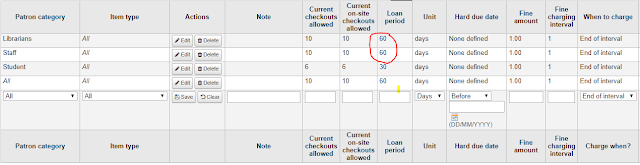
If the setting is not done correctly, Koha will add unintended additional days to loan due date. For example, if your loan period is 60 days, Koha would add days on which your Libary is closed which will increase the loan period to 70 days. For example, in my case, I have set a loan period of 60 days. Which mean the borrower has to return the books after 60 days. My rules are as show in the image. However, if the setting is cont correctly configured, the loan period would be 70 days, instead of 60 days as per my rule. This is because Koha system is adding additional 10 sundays to the loan period. The issue is show in the following image. In the image the borrower due date is set to 70 days (check the dates) which sould not be the case as per my rule. SOLUTION To solve the issue, go to Administration-> Global System Preferences->Circulation-> Checkout Policy and look for  useDaysMode and set to circulation rules only. Now, if you try checking ...
mysql_full_unicode_support#File_format issue while installing Moodle with MariaDB. Your database uses Antelope as the file format. 'innodb_large_prefix' to 'ON'

Image
this test must pass Your database uses Antelope as the file format. Full UTF-8 support in MySQL and MariaDB requires the Barracuda file format. Please switch to the Barracuda file format. See the documentation  MySQL full unicode support  for details. Check mysql_full_unicode_support#Large_prefix this test must pass For full support of UTF-8 both MySQL and MariaDB require you to change your MySQL setting 'innodb_large_prefix' to 'ON'. See the documentation for further details. Check If you get the above mention error. Try the following solution. Login to mysql and run the following command. mysql> SET GLOBAL innodb_file_format = barracuda  mnysql> SET GLOBAL innodb_file_per_table = 1  mnysql> SET GLOBAL innodb_large_prefix = 'on'  And refresh the browser. 

Email Notification in Koha: How to configure Email Notification in Koha 18.11 using Posfix?

Image
How to configure Email Notification in Koha 18.11 using Posfix? Here is the video tutorial.

Solution to Koha Error : .error retrieving biblio 314 at /usr/share/koha/bin/migration_tools/rebuild_zebra.pl while rebuilding zebra in Koha 18.11

If you get '.error retrieving biblio' issue while rebuilding zebra, the error is probably the issue is link to Perl libraries.  .error retrieving biblio 314 at /usr/share/koha/bin/migration_tools/rebuild_zebra.pl  .error retrieving biblio 315 at /usr/share/koha/bin/migration_tools/rebuild_zebra.pl  .error retrieving biblio 317 at /usr/share/koha/bin/migration_tools/rebuild_zebra.pl  .error retrieving biblio 318 at /usr/share/koha/bin/migration_tools/rebuild_zebra.pl  .error retrieving biblio 319 at /usr/share/koha/bin/migration_tools/rebuild_zebra.pl Try to run the following command for the solution: #export PERL5LIB="/usr/share/koha/lib" #export KOHA_CONF="/etc/koha/sites/library/koha-conf.xml" And rebuild the zebra once again # koha-rebuild-zebra -v -f library

Enable SIP2 in Koha. How to configure SIP server in Koha 18.11??

First to enable the SIP2, run the commands below: # koha-enable-sip library       [where library is the koha instance name] # koha-start-sip library          [start the sip server] # koha-stop-sip library           [stop the sip server] Next, configure the SIPconfig.xml # vim /etc/koha/sites/library/SIPconfig.xml Add the necessary details in the SIPconfig.xml file <acsconfig xmlns="http://openncip.org/acs-config/1.0/"> <!-- above address gets nothing, it's just a namespace -->   <error-detect enabled="true" /> <!--   Set Net::Server::PreFork runtime parameters   syslog_ident will identify SIP2 Koha server entries in syslog   For OpenSolaris, add: syslog_logsock=stream -->   <server-params             min_servers='1'            min_spare_servers='0'         ...

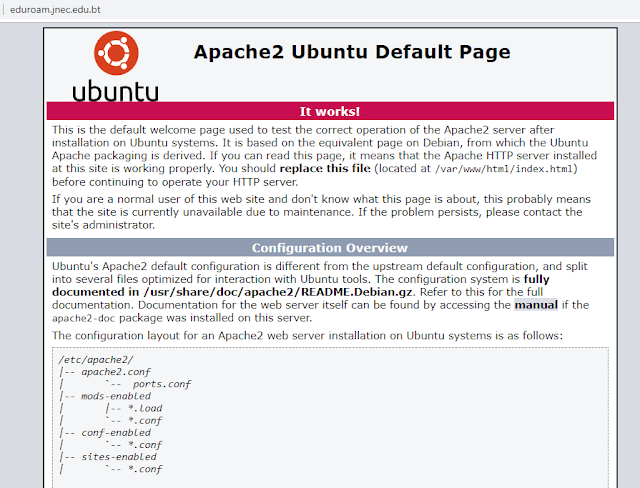
Apache2 Ubuntu Default Page! It works! If you webpage shows Apache default page and not your actual site. Here is the solution.

Image
If you get he default apache page as shown below: Disable the  default apache site with the following command: # sudo a2dissite 000-default.conf And restart the apache2: # service apache2 reload It should now show your intended site as shown

Koha Error, Can't locate Koha/Exceptions/DuplicateObject.pm while rebuilding the zebra database after Koha Upgrade.

root@lib:~# koha-rebuild-zebra -v -f library Do you get the following error while rebuilding the zebra database: Can't locate Koha/Exceptions/DuplicateObject.pm:   ./Koha/Exceptions/DuplicateObject.pm: Permission denied at /usr/share/perl/5.22/base.pm line 97.         ...propagated at /usr/share/perl/5.22/base.pm line 106. BEGIN failed--compilation aborted at (eval 26) line 3. BEGIN failed--compilation aborted at /usr/share/koha/lib/Koha/Exceptions.pm line 70. Compilation failed in require at /usr/share/koha/lib/Koha/DateUtils.pm line 22. BEGIN failed--compilation aborted at /usr/share/koha/lib/Koha/DateUtils.pm line 22. Compilation failed in require at /usr/share/koha/lib/C4/Log.pm line 30. BEGIN failed--compilation aborted at /usr/share/koha/lib/C4/Log.pm line 30. Compilation failed in require at /usr/share/koha/lib/Koha/Config/SysPref.pm line 26. BEGIN failed--compilation aborted at /usr/share/koha/lib/Koha/Config/SysPref.pm line 26. Com...

unmet dependencies issue while mariadb-server on Ubuntu 18.04(SOLVED).

To solve the unmet dependencies follow the instruction below: 1. Add the MariaDB GPG key to your system. Run the commend below: sudo apt-key adv --recv-keys --keyserver hkp://keyserver.ubuntu.com:80 0xF1656F24C74CD1D8 Note: For Ubuntu 18.04   install  software-properties-common  package to get  add-apt-repository  command. 2. A dd the MariaDB repository with the following command: sudo add-apt-repository 'deb [arch=amd64,arm64,ppc64el] http://ftp.utexas.edu/mariadb/repo/10.3/ubuntu bionic main' 3. U pdate the packages list: sudo apt update 4.  Now i nstall the MariaDB package:  sudo apt install mariadb-server

Video Tutorials : Bulk Import Excel records into Koha. How to perform a bulk import of records into Koha LMS?

Image

Bulk Import Excel records into Koha. How to perform a bulk import of records into Koha LMS?

Image
Koha will not let you import excel data directly into Koha system. To do this, you will need to convert the excel file into Marc file and then import into Koha. To convert to Marc file you will require MarkEdit software which is available for download from http://marcedit.reeset.net/ To convert Excel format into .mrk format First please make sure to save the data (library book list) in excel sheet in the format as in the file  here (Click the download the template) . All the columns are necessary. Leave the column(s) blank, if the data is not relevant. Follow the instructions below to import the Excel records into Koha Convert the Excel format to .mrk format First open the MarcEdit Application and Click on Delimited Text Translator Now upload the Source File. The source file is the Excel file with the book records. Specify the output file. DO NOT forget to save the output file as .mrk file. Click save. Now, click next. Select the Delimiter Values...

Problem binding to port 80: Could not bind to IPv4 or IPv6 (SOLVED) while installing SSL certificate.

Image
While trying to install SSL certificate if you come across the error "Problem binding to port 80: Could not bind to IPv4 or IPv6". First thing your try to do it to stop apache2 then try installing again. The screenshot below shows the error Stop the Apache2 and try again: Try installing the certificate again:

Upload pdf file in Wordpress 5.0 with Gutenberg.

Image
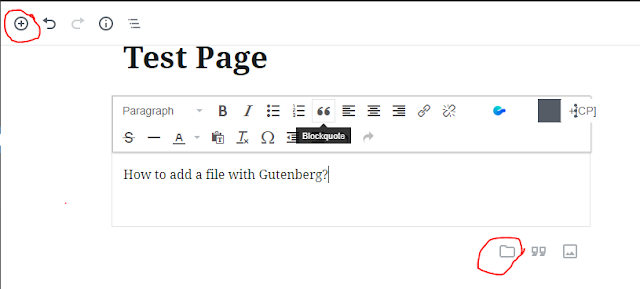
In the previous versions of Wordpress, we had the option to add files with Add Media button. But with the introduction of Gutenberg editor, the same button is missing. So now how do we achieve that with the new editor. Here is the solution. With Gutenberg comes the blocks and w ith blocks, you can insert, rearrange, and style multimedia content with very little technical knowledge. Instead of using custom code, you can add a block and focus on your content. To add a file, click on add block and select from the numerous options. There are two ways to add a file as shown in the image below: Click on + sign to open the options:  Or click the file icon at the bottom:

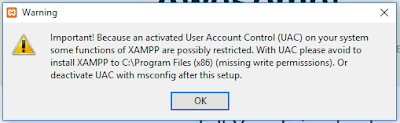
Xampp Warning! File permission Issue. Important! Because an activated User Account Control (UAC) on your system some functions of XAMPP are probably restricted. With UAC please avoid to install XAMPP to C:\Program Files (x86) (missing write permissions). Or deactivate UAC with msconfig after this setup.

Image
If you see a warning message as shown below while installing Xampp then that is because of file permission. Important! Because an activated User Account Control (UAC) on your system some functions of XAMPP are probably restricted. With UAC please avoid to install XAMPP to C:\Program Files (x86) (missing write permissions). Or deactivate UAC with msconfig after this setup. To avoid the message and continue the installation you can either select installation folder other that C:/Program Files or you can set the User Account Control (UAC) as follows: 1. In windows search for UAC and go to User Account Control Setting. You will see default setting as in the following image. 2. Now slide the slider down to 'Never Notify' and hit OK. Now you can continue to install the Xampp. Please note to set back the UAC's setting to its default setting unless you are familiar with the apps you are installing.

Dzongkha font in Photoshop! How to make Dzongkha and Tibetan fonts compatible in Photoshop?

Image
Photoshop normally distorts and cannot render complex Dzongkha and Tibetan fonts and makes it difficult to read and work with Dzongkha fonts. However DDC has the solution to the issue. To make the dzongkha font work : Download the Dzongkha Compatible PSD Template from Here Open the downloaded PSD template in Photoshop Replace the existing text in the text layer with your own text. You may now apply any paragraph, character or any other formatting on the text.